Your first request
From an empty project to your first change in about five minutes. The steps are the same in every DAW.
Want exact menus? Keep the guide for Logic Pro, Ableton Live or FL Studio open alongside this.
Put the Hub on your master
Add False Audio Hub to your master track and open its window. One per project.
Put a Link on a track
Add False Audio Link to a track with some audio on it, like a vocal or guitar. Make it the last effect on the track. After a second its header reads Controlled by False Audio Hub.
If the Link doesn't show the track's name, type one in, like "Lead vox". That's how False Audio knows which track you mean.
Play your song
Press play and let it run for about eight bars, so False Audio can hear the track.
Ask for something
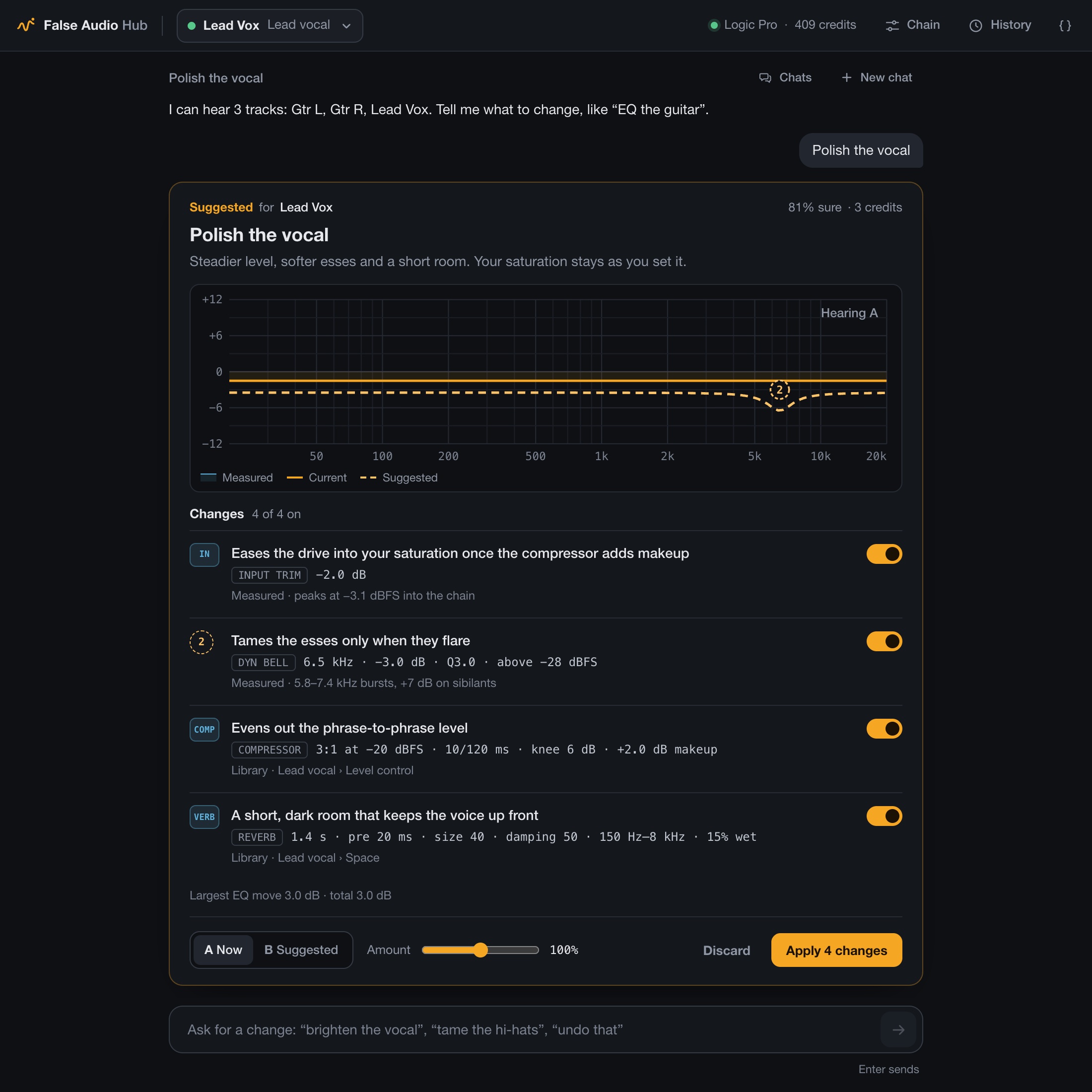
Type what you hear into the box at the bottom of the Hub and press Return:
- "the vocal is a bit harsh"
- "warm up the guitar, just a bit"
- "give the vocal a short room"
A suggestion appears in a few seconds. Sometimes it asks a quick question first.
Compare, then apply
While the song plays, switch between A Now and B Suggested. Drag Amount for more or less. Happy? Press Apply. Not for you? Discard.
Changed your mind?
Type "undo that", or press Undo. Undo is always free.
Asking costs a few credits. Listening, applying and undoing are free. Credits